Common problem areas
How do I add limits to my sum/integral?
The “sum" and “int" commands can (optionally) take in the parameters “from" and “to". These are used for lower and upper limits respectively. These parameters can be used singly or together. Limits for integrals are usually treated as subscripts and superscripts.
| Markup | Result |
|---|---|
| sum from k = 1 to n a_k |

|
| int from 0 to x f(t) dt or int_0^x f(t) dt |
 or or 
|
| int from Re f | 
|
| sum to infinity 2^{-n} | 
|
 |
For more details on integrals and sums, see the Math commands reference. |
Brackets with matrices look ugly!
For background, we start with an overview of the matrix command:
| Markup | Result |
|---|---|
| matrix { a # b ## c # d } | 
|
|
Rows are separated by two #'s and entries within each row are separated by one #. |
The first problem people have with matrices is that brackets do not “scale" with the matrix:
| Markup | Result |
|---|---|
| ( matrix { a # b ## c # d } ) | ()
|
OOoMath provides “scalable" brackets. That is, the brackets grow in size to match the size of their contents. Use the commands left( and right) to make scalable brackets.
| Markup | Result |
|---|---|
| left( matrix { a # b ## c # d } right) | 
|
 |
Use left[ and right] to obtain square brackets. |
How do I make a derivative?
Making derivatives essentially comes down to one trick: Tell OOo it's a fraction.
In other words, you have to use the over command. Combine this with either the letter “d" (for a total derivative) or the partial command (for a partial derivative) to achieve the effect of a derivative.
| Markup | Result |
|---|---|
| {df} over {dx} | 
|
| {partial f} over {partial y} | 
|
| {partial^2 f} over {partial t^2} | 
|
|
Notice that we have to use braces (squiggly brackets) to make the derivative. |
Numbering equations
Equation numbering is one of OOoMath's best hidden features. The steps are simple, but obscure:
- Start a new line.
- Type “fn" and then press F3.
The “fn" is replaced by a numbered formula:
 (2)
(2)
Now you can double-click on the formula to edit it. For example, here is the Riemann Zeta function:
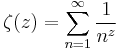 (3)
(3)
You can reference an equation (“as shown in Equation (2)") with these steps:
- Insert > Cross-reference..
- Click on the References tab (Figure 15).
- Under Type, select Text.
- Under Selection, pick the equation number.
- Under Format, choose Reference.
- Click Insert.
Done! If you later add more equations to the paper before the referenced equation, all the equations will automatically renumber and the cross-references will update.

|
To insert the equation number without parenthesis around it, choose Numbering under Format instead of Reference. |
| Content on this page is licensed under the Creative Common Attribution 3.0 license (CC-BY). |

