Using Apache OpenOffice Math
A PDF of this guide (including all the illustrations missing from this wiki version) is available from this wiki page.
Introduction
OpenOffice.org (OOo) has a component for mathematical equations. It is most commonly used as an equation editor for text documents, but it can also be used with other types of documents or stand-alone. When used inside Writer, the equation is treated as an object inside the text document.
 |
The equation editor is for writing equations in symbolic form (as in equation 1). If you want to evaluate a numeric value, see the Calc Guide. |
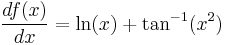 (1)
(1)
Getting started
To insert an equation, go to Insert > Object > Formula.
The equation editor opens at the bottom of the screen, and the floating Elements window (called “Selection” before Math 3.2 and “Formula Elements” in Math 3.2) may appear. You will also see a small box (with a gray border) in your document, where the formula will be displayed.

The equation editor uses a markup language to represent formulas. For example, %beta creates the Greek character beta (β). This markup is designed to read similar to English whenever possible. For example, a over b produces a fraction: 
To insert a numbered formula in Writer, type fn then press the F3 key.
Additional References
For very basic step-by-step instructions and tutorials for specific tasks, see http://plan-b-for-openoffice.org/math/index
| Content on this page is licensed under the Creative Common Attribution 3.0 license (CC-BY). |

